
Why paper receipts are worth scanning
Most receipts are printed on thermal paper, the shiny kind that darkens with heat instead of ink. It's cheap and fast for stores, but it fades with time, sunlight, and the warmth of a wallet or a car. A receipt that was perfectly clear in March can be a blank gray strip by December. That's a problem when the receipt is your proof of purchase for a return, a warranty claim, or a business expense your accountant wants to see.
Paper also gets lost, which is the other reason it pays to learn how to scan receipts. It goes through the wash, falls out of a bag, or lands in a drawer with fifty others. A scan fixes both problems at once: it doesn't fade, and it lives on the phone you already carry. Say you're a contractor who stops at the hardware store three times a week; scanning each receipt in the parking lot saves an hour of digging at tax time.
How to scan receipts on your iPhone, step by step
Your iPhone camera is more than good enough. The trick is using an app that does the cleanup for you, so the scan looks like a flat, crisp page instead of a crooked photo of a receipt on a countertop. Here's how to scan receipts with Setrik Scan, our receipt scanner app for iPhone. The same basic idea works with any good scanner app, but these are the exact buttons in ours.
Scanning a receipt in five steps
Open the app and tap Scan Document
The camera opens, ready to go.
Hold your iPhone over the receipt
A yellow outline appears when Setrik Scan has found the edges of the paper.
Hold steady for about a second
It scans by itself. You can also tap the shutter button whenever you like.
Check the result
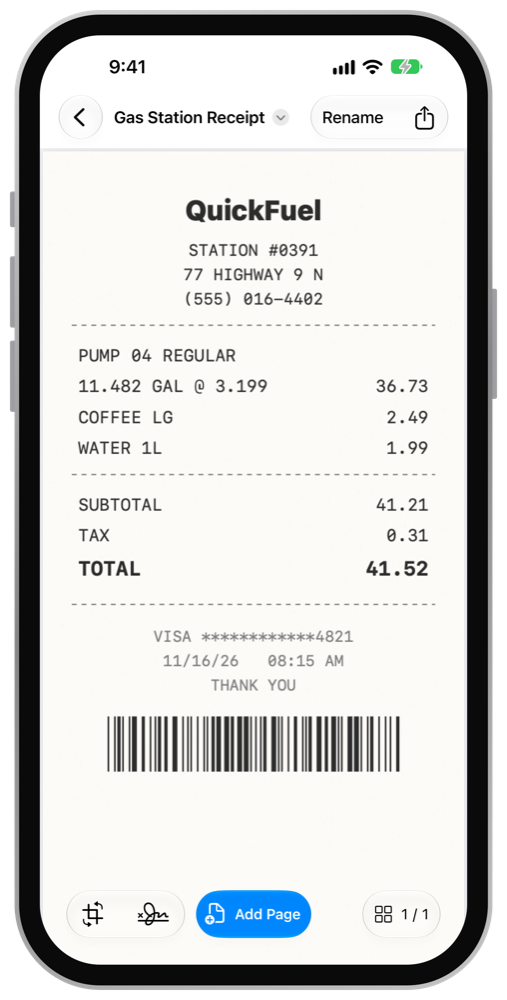
The receipt is straightened and cleaned up into a PDF. If a corner is off, tap Edit to crop or rotate it.
Give it a short name, or don't
Something like "Hardware Store Receipt" is plenty, because search can find it by the words on the receipt anyway.
That's the whole process. Once you've done it twice, it becomes a habit you barely notice. If a receipt is longer than your screen, like a grocery receipt for a big shopping trip, scan the top half first, then tap Add Page and scan the bottom half. Both parts stay together in one document, so you never have to wonder where the second half went.
Tips for a clean, readable receipt scan
A good scan is one you can read a year from now, and that your phone can read too. When people ask us how to scan receipts that stay readable, the answer starts with light. Scan in a bright room or near a window, and if it's dim, turn on the flashlight from the camera screen. Contrast is next: a white receipt on a dark table or the dashboard of your car is easy for the camera to find, while a white receipt on a white counter can confuse it.
Small habits that make every scan better
Flatten it first
Run a finger along a curled receipt so the text isn't bent out of shape.
Scan it early
Fresh thermal print is dark and sharp. Faded print is harder to read and harder to search.
Pick the right setting
Black & White makes plain receipts crisp and small. Color is better when there's a stamp, a highlight, or a logo you want to keep.
Keep it in one piece
Use Add Page for long receipts rather than squeezing the whole thing into one far-away shot.
Scan receipts and organize them so you can find them later
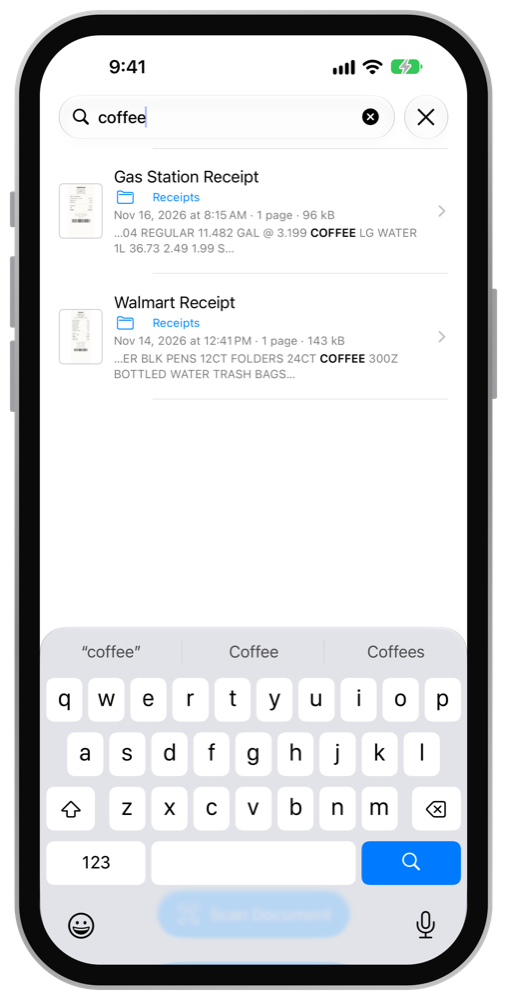
Knowing how to scan receipts is only half the job. The other half is finding the right one when you need it. Most scanner apps only let you search the names you typed, which means you need to have named every receipt well. Setrik Scan reads the words printed on each receipt, right on your iPhone, so its search finds a receipt by anything on it: the store, an item, or the total. It even shows you the line where it found the match.
Folders help too, if you like them. Make one called Receipts, or one for the year, like Taxes 2026, and move receipts in with a long press. Imagine you bought a coffee maker in the spring and it stops working in the fall. Instead of searching the junk drawer, you type "coffee" into Search, and the receipt comes right up, ready to show at the counter or email to the store.
A simple system that holds up
You don't need a complicated filing plan to scan receipts and organize them well. Keep everything in one Receipts folder, or split it into Personal and Business if you track expenses. Give each scan a short name when it's handy, and let search do the heavy lifting the rest of the time. For tax receipts, the IRS explains how long to keep records, and our guide on how long to keep receipts for taxes covers it in plain English.
Find any receipt by a word on it
Search inside every receipt.
Can you use the iPhone Notes app instead?
Yes, and if you only need to know how to scan receipts once in a while, it works fine. Apple's Notes app has a built-in document scanner. The difference shows up once receipts become a habit. Notes keeps scans inside your notes, mixed in with grocery lists, while a dedicated scanner app keeps them as documents you can sort into folders, search by the words printed on them, and share as a PDF or as pictures that open on any phone.
Privacy is the other question people ask first, since receipts show where you shop and what you buy. When you scan receipts with iPhone apps, check where the scans go. Setrik Scan has no account and no server, and it never sends your scans to us, to Apple, or to anyone. A receipt leaves your phone only when you share it. The details are in how our privacy works.
The bottom line
So, how to scan receipts the easy way?
Scan them while they're fresh, with good light and a dark background, and let the app straighten and clean up each one. Keep them in a folder or two, and rely on search to find any receipt by a word printed on it. That's honestly all there is to it. If you're ready to stop worrying about faded, lost, or crumpled receipts, Setrik Scan is free to download, with no subscriptions and no account. And if you have a question first, our support page has answers, or you can email us.
Every receipt, saved and searchable
See how Setrik Scan keeps every receipt on your iPhone, ready when you need it.
Meet Setrik Scan