

First, where is the document right now?
There are really two situations. In the first, someone emails you a PDF, like a renter getting a lease addendum from the landlord, and you just need to add your name and send it back. In the second, you're holding paper. Imagine a parent in the school pickup line with a permission slip that's due tomorrow and no printer at home. The steps for each are different, so pick the one that matches what's in front of you and skip the other.
How to sign a PDF on an iPhone with Apple's Markup
If the PDF is already on your phone, you don't need to download anything. Apple's Markup tools are built into the iPhone and work in apps like Files, Notes, and Mail. The steps below follow Apple's guide to filling out forms and signing documents on iPhone. Button names can shift a little between iOS versions, so if something looks different, Apple's guide is the place to check.
Signing a PDF you already have
Open the PDF
If it's an email attachment, tap it, and save it to the Files app if you're asked.
Tap the Markup button
Then tap any blank field to type into it.
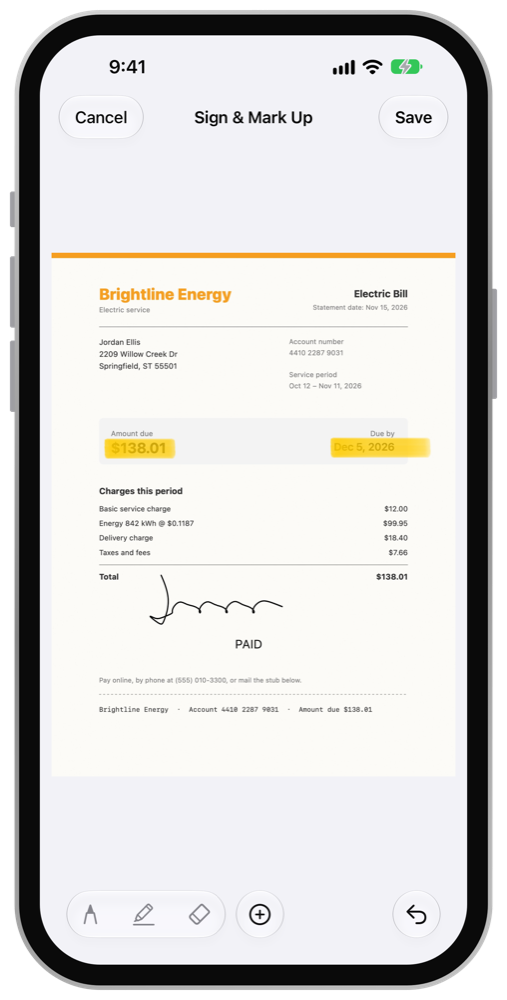
Add your signature
Tap the add button, tap Add Signature, sign with your finger, and tap Done. Your iPhone remembers it for next time.
Put it in place
Drag the signature onto the signature line.
Send it back
Tap Done, then share the signed PDF by email or save it.
How to sign a paper form on your iPhone
Markup can't help until the paper is a PDF, so the first step is a good scan. That's where a scanner app earns its place. With Setrik Scan, you scan the page, add your signature and the date, and send it, all from one screen. Here's how to sign a PDF document on iPhone when it starts out as paper. Your signature is drawn once and saved only on your iPhone, so next time it's a single tap.
Scan, sign, and send in Setrik Scan
Scan the form
Tap Scan Document and hold your iPhone over the page. It scans by itself once the yellow outline finds the edges. For a second page, tap Add Page.
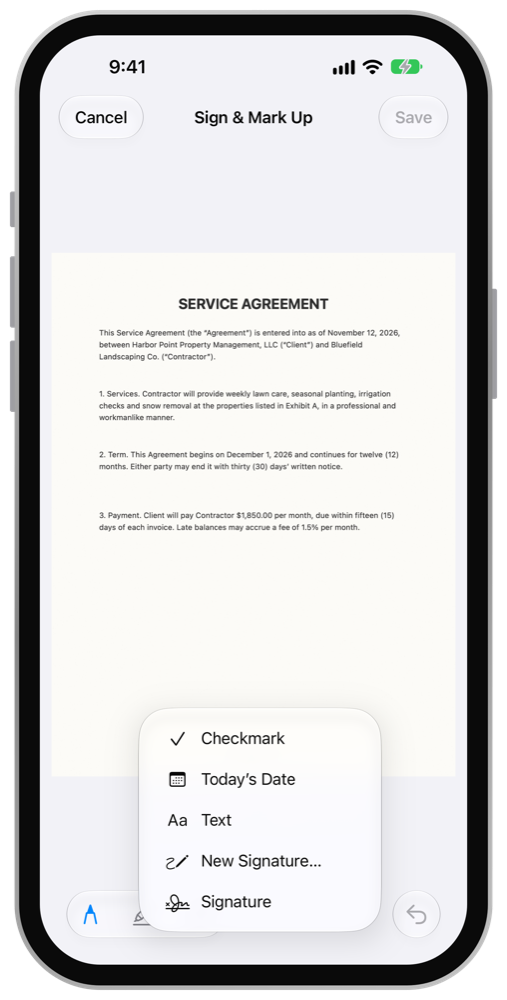
Tap Sign
Then tap Add and choose Signature. The first time, draw your signature with your finger.
Fill in the rest
From the same Add menu, drop in today's date, a checkmark, or a line of text, like your child's name.
Share the PDF
Tap Share, choose PDF, and pick Mail, Messages, or wherever it needs to go.
Scanning first has a bonus that most guides on how to sign a PDF on an iPhone skip: you keep a clean copy of exactly what you signed. Months later, when someone asks whether you sent the form, you can search for it by a word on the page instead of digging through your sent mail. If you also need to send it by email, our guide on how to scan documents and email them covers that part step by step.
Sign it without a printer
Sign right on your iPhone.
Will they accept a signature from your phone?
Most of the time, yes. Schools, landlords, and offices regularly take a signed PDF by email. But some forms ask for an ink signature, and some organizations use their own signing service with a link you open. When people ask us how to electronically sign a PDF on iPhone for something official, our honest answer is to check with whoever sent the form. If they need something special, they'll say so, and it saves a second trip.
Where does your signature go?
Your signature is personal, so it's worth knowing where it's kept. In Setrik Scan, the signature you draw is saved only on your iPhone, inside the app. Setrik Scan has no account and no server, and it never sends your scans or your signature to us, to Apple, or to anyone else. A signed form leaves your phone only when you share it. More on that in how privacy works in Setrik Scan.
The bottom line
So, how to sign a PDF on an iPhone?
If the PDF is already on your phone, use Apple's Markup: open it, add your signature, and send it back. If the form is paper, scan it first, then sign the scan and share it as a PDF. That's honestly how to sign a PDF on an iPhone, either way, with no printer and no pen. Setrik Scan is free to download, with no subscriptions and no account, and our support page answers common questions.