

What is a searchable PDF?
A searchable PDF is a PDF with two layers: the picture of the page you can see, and a hidden layer of text underneath it. That text layer is what lets you search for a word, highlight a sentence, or copy an account number out of the file. A plain scan has only the picture. To a computer, it's no different from a photo, so searching it finds nothing. Here's a quick way to answer what is a searchable PDF for any file you have: try to select a single word, and if you can, it's searchable.
Why does it matter? Because the papers we scan are the ones we need to find later. Take a contract you emailed to your accountant. If it's searchable, they can jump straight to the renewal date with the Find command instead of reading every page. The same goes for you, months from now, looking for one line in a long statement. If you want to create searchable PDF files from paper, the step that makes the difference happens while you scan.
How text recognition makes a scan searchable
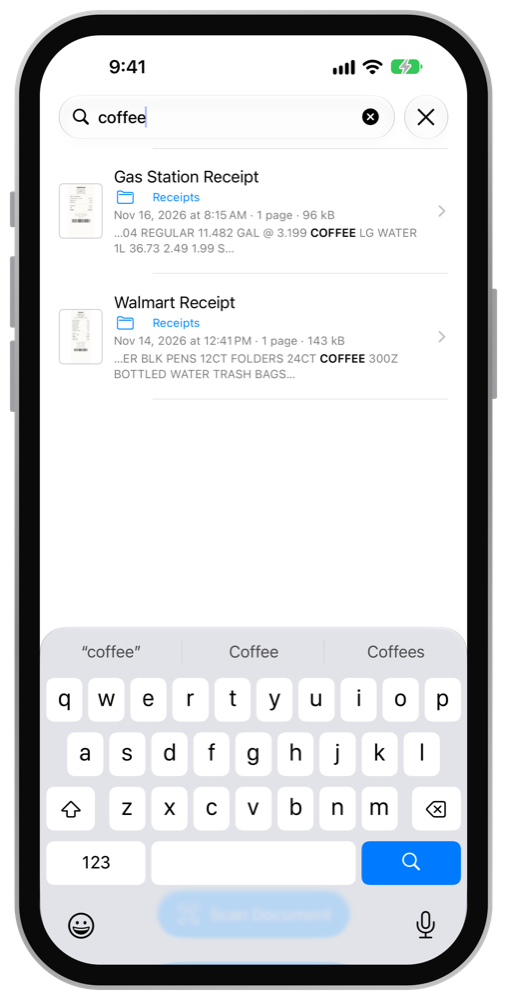
The trick is text recognition (often called OCR): software that looks at the picture of the page and works out which letters and words are printed on it. Your iPhone is already good at this. Apple uses the same kind of on-device reading for Live Text in the iPhone camera, which lets you copy text you point the camera at. Setrik Scan reads the words on every page you scan, right on your iPhone, and keeps them with the document. That's why its search can find a scan by any word inside it and show you the line where it matched.
It also means nothing has to be uploaded to make a PDF searchable. Many online PDF tools ask you to send your file to their website first. Setrik Scan has no account and no server, and it never sends your scans to us, to Apple, or to anyone else. The reading happens on your iPhone, and a scan leaves your phone only when you share it yourself. More on that in how Setrik Scan keeps your scans private.
Find any scan by a word in it
Search inside every page.
How to create searchable PDF files on your iPhone
With Setrik Scan, there's no separate button to press: the text is added as part of scanning. If you've never scanned with an iPhone, our guide on how to scan documents on your iPhone covers the basics. Here are the three steps to create searchable PDF files that keep their text when they leave your phone.
From paper to a searchable PDF in three steps
Scan the page
Tap Scan Document, hold your iPhone over the paper, and it scans by itself. Use Add Page for more pages.
Let it read the words
Setrik Scan reads the printed text on each page on your iPhone. Try searching for a word on the page to see it work.
Share it as a PDF
Open the document, tap Share, and choose PDF. Send it to Mail, Messages, AirDrop, Files, or Outlook.
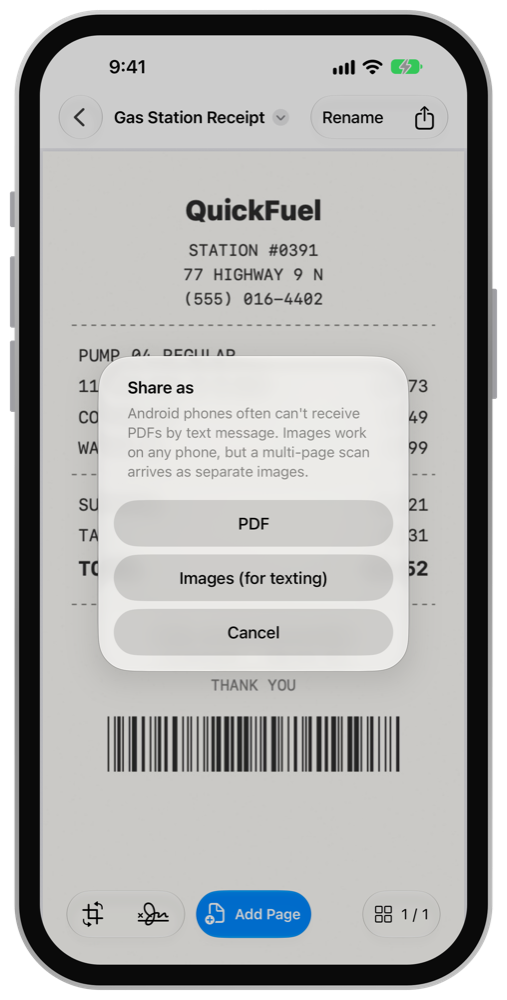
Share it as a PDF, not as images
When you share, Setrik Scan asks whether you want a PDF or images. Pick PDF when you want the text to come along: the PDF carries selectable, searchable text, so it's searchable on a Mac or PC too. Images are pictures of each page, which are perfect for texting to a phone that can't open PDFs, but they don't carry the text. That's why the app can also convert a PDF to JPG pictures for texting while keeping your searchable PDF for everything else. For sending by email, see how to scan documents to email.
How to make a scanned PDF searchable after the fact
What if you already have a PDF that's only pictures, like an old scan from an office copier? Setrik Scan works from paper, so if you still have the paper, the simplest way is to scan it again. If you don't, you'll need a PDF program on a computer with a text recognition feature to create searchable PDF copies of the old files. Either way, a few things help the words come through: a flat, well-lit page, sharp print, and Black & White for plain text. We don't promise the app reads handwriting, so treat handwritten notes as pictures.
The bottom line
So, can you create searchable PDF files on an iPhone?
Yes. Scan the page, let text recognition read the words on your iPhone, and share it as a PDF. The file looks the same as any scan, but you and anyone you send it to can search it, select text, and copy from it. Picture a whole year of utility bills you can search for an account number in a few seconds. If you're scanning a drawer full of papers, our guide on how to go paperless at home is a good next read. Setrik Scan is free to download, and our Setrik Scan support page answers common questions.