
Can my iPhone scan documents?
Yes, and it does a better job than most people expect. A scan isn't just a photo of a page. The iPhone finds the edges of the paper, straightens it so it looks flat, cleans up the background, and saves the result as a PDF. That means the page looks like it came out of an office scanner, not like a crooked picture of a form on your kitchen table. So if you've been asking yourself "can my iPhone scan documents without a new app?", the answer is yes, and you don't need to buy anything.
There are three good ways to do it. Notes and Files are built in, and a dedicated scanner app like ours adds tools for finding and sending scans later. All three use the camera you already have. The steps below follow Apple's own guide on how to scan documents on your iPhone or iPad, so the button names match what you'll see on your screen.
How to scan documents in Notes
For most people asking "how do I scan documents on my iPhone?", the first answer is already on the home screen. The scan button lives inside a note, behind the Attachment button, which is why it's easy to miss. Here's how to scan documents in Notes, step by step.
Scanning a page with Notes
Open a note
Open Notes and pick a note, or start a new one.
Tap the Attachment button, then Scan Documents
The camera opens.
Hold the page in view
In Auto mode it scans by itself. You can also tap the shutter button or press a volume button.
Adjust and keep it
Drag the corners to fit the page, then tap Keep Scan.
Finish up
Scan more pages, or tap Done. The scan stays inside that note.
Scanning with the Files app
The Files app works the same way, with one difference: the scan is saved as a PDF in a folder you choose instead of inside a note. In Files, tap the More button (the three dots), then Scan Documents, and follow the same steps. When you're done, choose a location and tap Save. This is handy when you want a plain PDF you can attach to an email later, which we cover in our guide on how to scan documents to email.
When a scanner app is the better fit
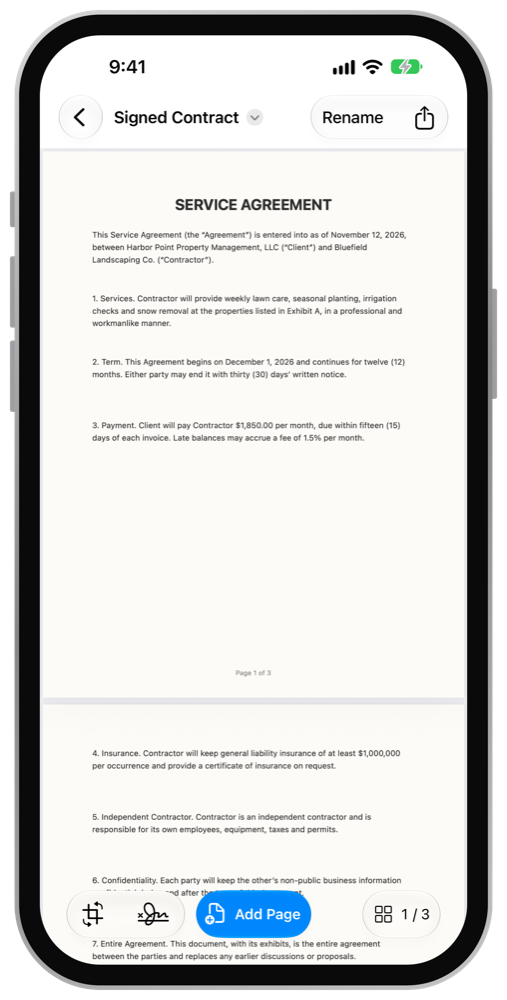
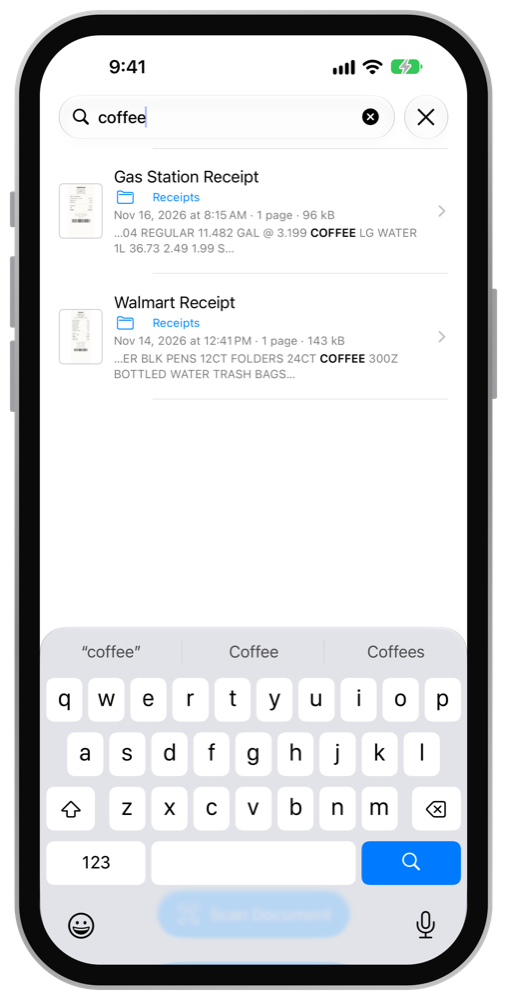
If you scan a page once a month, Notes or Files is plenty. Once scanning becomes a habit, a dedicated app starts to pay off, because the hard part isn't the scan. It's finding the right one six months later. Setrik Scan reads the words on every page right on your iPhone, so search finds a document by any word inside it and shows you the line where it matched. It also keeps scans in folders of their own, lets you sign a page, and shares a document as a PDF or as pictures that open on any phone.
Privacy matters here too, since the papers people scan are often the private ones: leases, medical bills, tax forms. Setrik Scan has no account and no server. Your scans stay on your iPhone, and we never send them to us, to Apple, or to anyone else. A scan leaves your phone only when you share it yourself, which is a comfortable answer to anyone asking how do I scan documents on my iPhone without handing them to a company.
Private by design
Nothing uploaded. Ever.
How to scan a document with Setrik Scan
The steps are close to Apple's, with a little more done for you. Every page is straightened and cleaned up into a scanned PDF that looks like it came off a flatbed. Here are the exact buttons in our app.
Scanning a page with Setrik Scan
Tap Scan Document
The camera opens, ready to go.
Hold your iPhone over the page
A yellow outline appears when the app has found the edges.
Hold steady for a moment
It scans by itself, or tap the shutter button whenever you like.
Add more pages
Tap Add Page for a second page, a third, and so on, all in one document.
Imagine you need a signed lease page and a school form sent before work. You scan both at the kitchen counter, sign the form on the screen, and send each one in a couple of minutes. For even faster scanning, add a Scan button to the Lock Screen, Control Center, or the Action Button, so Quick Scan opens the camera with one press.
Tips for a clean scan every time
Whichever app you use, a few habits make every scan easy to read. Lay the page on a dark surface so the camera can find the edges, scan in good light, and flatten folded pages with your hand first. In Setrik Scan, Black & White keeps plain text crisp and small, while Color is better for stamps or highlights. If you'd like other people to search your scans too, see how to create a searchable PDF.
The bottom line
So, how do I scan documents on my iPhone?
Open Notes or Files, tap Scan Documents, and let the camera do the work. If "how do I scan documents on my iPhone?" is a question you only ask once a year, that's honestly all you need. If you're scanning every week, or you want to find a page later by a word printed on it, a scanner app like Setrik Scan saves real time. Picture a stack of medical bills turned into scans you can search by the provider's name. It's free to download, and if you have a question first, our Setrik Scan support page has answers.
Clean, straight scans every time
Hold your iPhone over the page, and Setrik Scan finds it, scans it, and cleans it up.
See how scanning works