
What the person on the other end wants
When someone asks you to email a document, they almost always want a PDF. It opens the same way on every computer and phone, it keeps all the pages together in order, and it prints cleanly. A regular photo can work in a pinch, but it often arrives sideways, shadowy, and hard to read. Say you're sending a three-page insurance form: as one PDF it's a single attachment, while as photos it's three separate pictures the office has to sort out. A scanner app gives you the PDF without any extra steps.
How to scan and email documents from your iPhone
Here's how to scan documents and send to email with Setrik Scan. These are the exact buttons in our app, and the whole thing takes about a minute. If you'd like more help getting a clean scan first, our guide on how to scan documents on iPhone covers light, background, and settings in more detail.
Scan, save, and send in three steps
Scan the pages
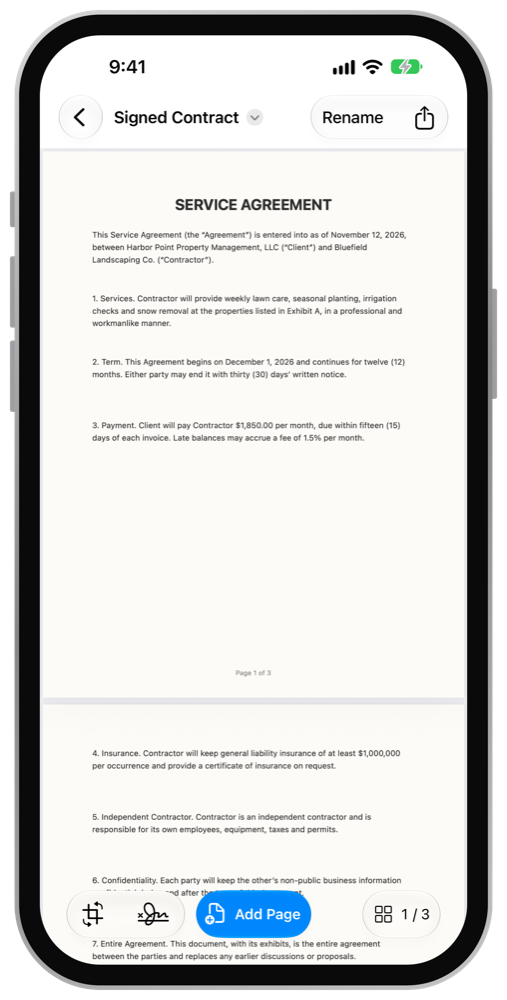
Tap Scan Document and hold your iPhone over the page. When the yellow outline finds the edges, it scans by itself. For more pages, tap Add Page so they all stay in one PDF.
Check and name it
Each page is straightened and cleaned up. If one is crooked, tap Edit to crop or rotate it. Rename the document to something clear, like "Insurance Form - Smith".
Share it to Mail
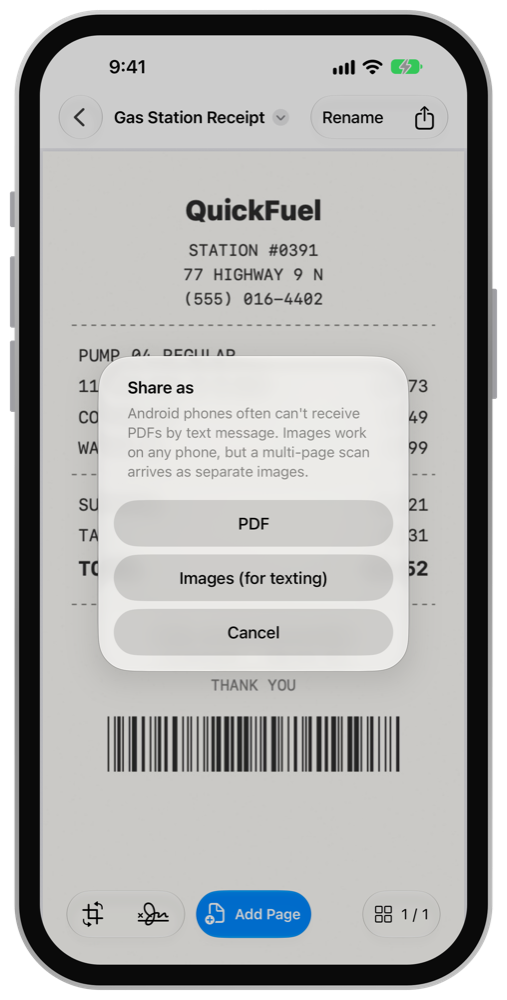
Tap Share, choose PDF, then pick Mail, Outlook, or your email app. Type the address, add a short note, and tap Send.
PDF or pictures?
When you tap Share, Setrik Scan asks whether you want a PDF or images. For email, choose PDF almost every time. Images are there for texting, because many Android phones can't open a PDF sent by text message, while a picture works on any phone. If the person asked for a scan by email, the PDF is what they're expecting. You can always send the same scan again as pictures later if they can't open it.
The app keeps your copy after you send it, too, which an email attachment alone doesn't do. Weeks later, if the office says they never got it, you can search for the form by any word printed on it and send it again in seconds. If the form needs your signature before it goes out, here's how to sign a PDF on your iPhone first.
Send it to any phone
PDFs or pictures, your choice.
The quick way: scan inside Apple's Mail app
If you just need to send one page right now, Apple's Mail app can scan too. As Apple's guide to adding email attachments on iPhone explains, you tap in the message, open the attachment options above the keyboard, and choose Scan Document. It works well for a one-off. The difference is that the scan lives only in that email, so there's no saved copy to search, rename, or send again later. For paperwork you might need twice, a scanner app is the better fit.
Why won't my scan send?
The most common follow-up to "how do I scan documents to email" is why the email won't go, and the usual reason is size. A long document scanned in color at high quality can be too big for some email accounts. In Setrik Scan's Settings, choose Black & White for plain text pages and a Medium or Low quality, and new scans come out much smaller. Apple's Mail also offers Mail Drop when a file is too large for your email account. If it still won't go, check that you're connected to the internet, since the scan itself works offline but sending needs a connection.
Your scans stay on your iPhone until you send them
People often ask us where their scans go before they hit Send. With Setrik Scan, they stay on your iPhone. There's no account and no server, and the app never sends your scans to us, to Apple, or to anyone. A scan leaves your phone only when you share it yourself, and then it goes only to the person you email, through your own email app. That matters for forms with your address, account numbers, or a signature on them.
The bottom line
So, how do I scan documents to email?
Scan the pages with your iPhone, keep them together as one PDF, give it a clear name, and share it to your email app. If you've been asking how do I scan documents to email without a scanner or a trip to the library, that's honestly all there is to it. Setrik Scan is free to download, with no subscriptions and no account. If you have a question first, our support page has answers.
Clean, straight scans every time
Hold your iPhone over the page, and Setrik Scan finds it, scans it, and cleans it up.
See how scanning works